
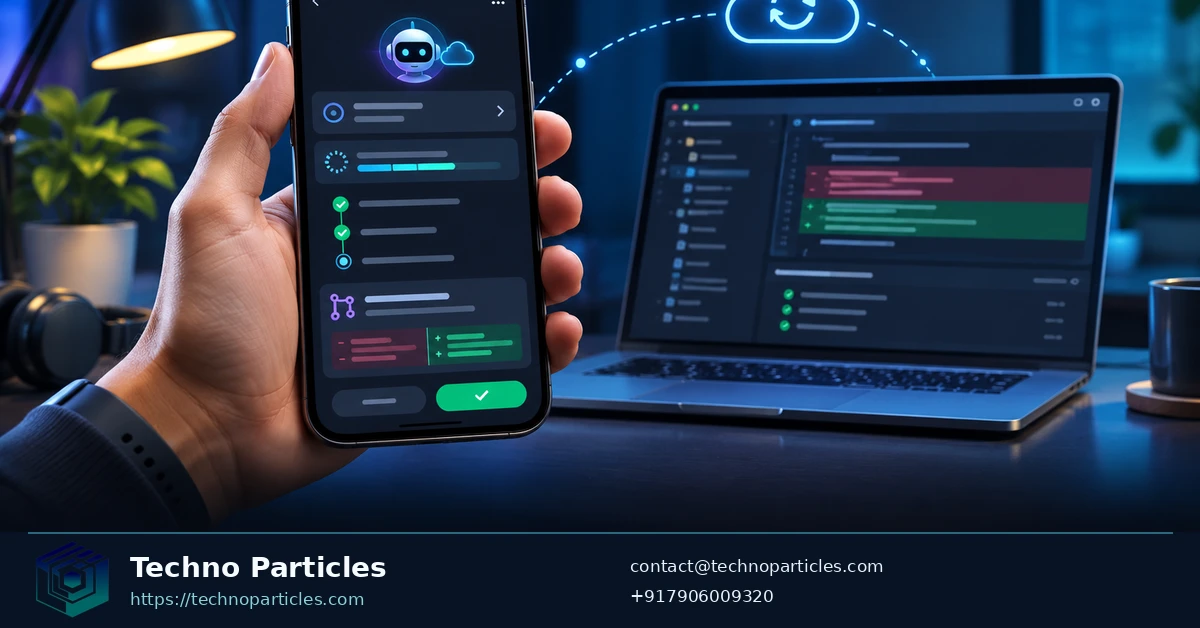
Understanding how to control GitHub Copilot coding agents from your phone starts with a choice: send a task to a cloud session or use GitHub Mobile to steer an agent working on your development machine. Both approaches let you follow work away from your desk, but they rely on different execution environments.
GitHub Mobile can start a cloud session for a repository and track its progress. It can also provide a remote interface for an eligible local Copilot CLI session. The distinction matters when a task depends on files or tools that exist only on a particular machine.
| Phone workflow | Where work runs | Documented use |
|---|---|---|
| Copilot cloud session | GitHub-hosted cloud sandbox | Start and track repository tasks from GitHub Mobile; see the mobile cloud-agent guide. |
| Copilot CLI remote control | The original development machine | Monitor and steer an interactive session; see the remote-control overview. |
| VS Code Agent Host | The host machine and its execution environment | Share an agent session across clients; see the Agent Host architecture guide. |
What GitHub changed about phone-based Copilot control
On October 28, 2026, GitHub announced that developers could control agents running on their development machines through GitHub Mobile using Agent Host. That extends the mobile options described in GitHub’s May 18, 2026 announcement of remote control for Copilot CLI sessions. The VS Code release announcement and CLI remote-control announcement describe the respective workflows.
The phone becomes a control surface
In these local workflows, the phone provides a way to interact with a session; it does not execute the code itself. This can be useful during application development when a developer needs to respond to an agent while away from the machine.
Cloud work versus local work
A cloud session uses GitHub infrastructure, while a local session uses the development machine’s environment. That difference determines where the agent encounters the repository’s dependencies and tools, and it should shape which workflow you choose for a particular task.
How to start a Copilot coding task from GitHub Mobile
To start a cloud task, open GitHub Mobile and begin a new Copilot session. Select the repository, describe the change you want, and provide enough context for the agent to identify the relevant work. The GitHub Mobile cloud-agent guide documents the session flow.
Start a cloud session
Copilot in the cloud on GitHub Mobile is enabled by default for paid Copilot plans, although managed-user repositories and repositories where the feature is disabled are excluded. Check the repository’s settings if it is unavailable in the session flow.
Write a task that identifies the expected change and its boundaries. For example, ask the agent to correct a validation message in a named form and describe the expected behavior when a required field is empty. A focused request gives the session a concrete outcome to work toward without requiring a broad redesign.
For a larger initiative, separate an individual coding task from decisions about the overall scope. The project consultation service describes requirements discovery and scope definition, which are relevant when those decisions need more work before implementation.
Choose the repository, branch, environment, and model
Choose the repository and branch that contain the relevant code, then select the environment for the task. Consider whether that environment has the dependencies the change needs: GitHub’s mobile guide says the environment cannot be changed after the session starts.
Where the session flow offers a model choice, select one before sending the task. GitHub documents model selection for supported cloud-agent entry points in its cloud-agent model guide. The mobile flow also supports selecting a custom agent, which can be useful when one is available for the work you are assigning.
How to control a local Copilot agent from your phone
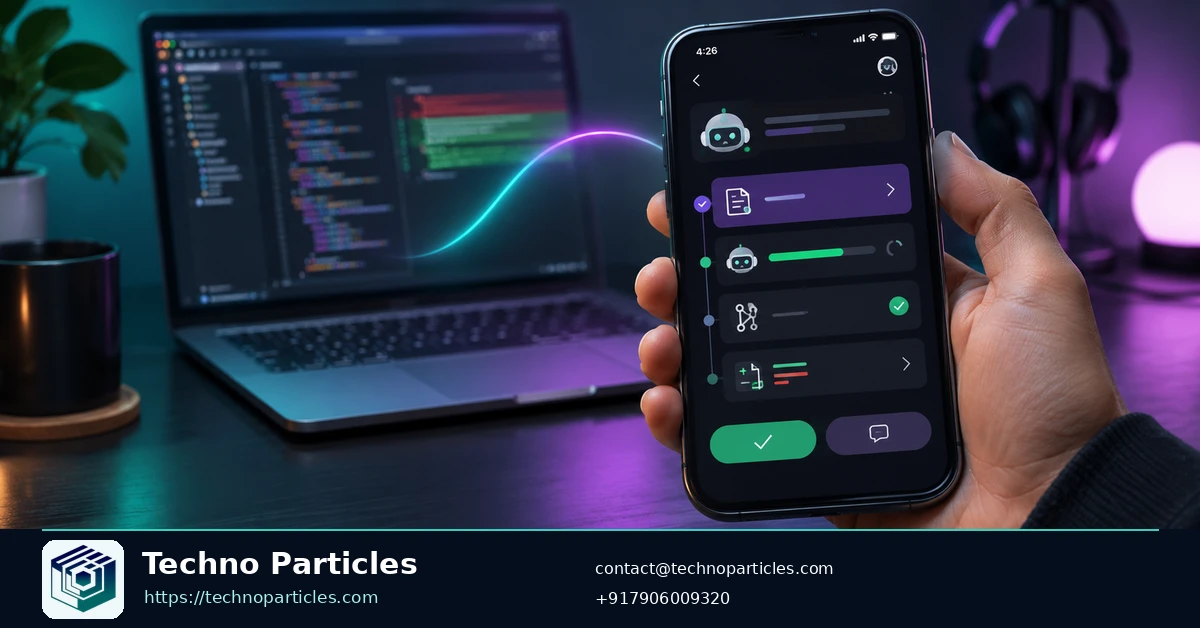
GitHub documents two ways to connect mobile control to work on a development machine: register a VS Code Agent Host, or enable remote control for an interactive Copilot CLI session. Pick the route that matches the session you want to use.
Register the development machine
For the Agent Host route, open a terminal in the project folder and run the command from GitHub’s October 28, 2026 VS Code announcement:
code agent host --github-environmentGitHub describes this setup as a way to control agents on the development machine through GitHub Mobile. The development machine and Agent Host must remain running while that local work is in progress. This is useful when an agent needs a particular project environment, such as the tools used for website development.
The Agent Host architecture guide, updated November 11, 2026, explains that the host manages sessions separately from individual VS Code windows. Multiple clients can observe and control a shared session, while the host and its execution environment provide the place where the work runs.
Enable CLI remote control
For a Copilot CLI session, enter the following command in the interactive session you want to access:
/remote onThen use GitHub Mobile with the same account to open the session. GitHub’s remote steering guide also describes QR-code access and the command /remote off for turning remote control off.
Keep the original machine online and the CLI session interactive. Organization or enterprise policy can restrict remote access; GitHub documents a “Store local sessions in the Cloud” policy with a “View and control” setting for this workflow. The remote-control overview explains how policy and permissions affect access.
What you can and cannot do from GitHub Mobile
GitHub Mobile gives you ways to steer a session as well as check its progress. For a remote CLI session, you can send follow-up prompts, answer questions, approve or reject plans, and respond to permission requests. GitHub describes these controls in its remote-control overview.
Remote controls
A follow-up prompt can narrow the work while the session is active. For example, if the agent proposes changing several form components, you can ask it to focus on the component named in the original request. If it asks a question, your answer can supply missing context without starting a separate task.
Plan approval and permission responses serve different purposes. A plan describes work the agent proposes to do; a permission request asks for a decision about an action. Read each request on its own terms before responding. GitHub’s remote-session announcement describes both live steering and permission management.
Cloud sessions offer a different handoff: the agent can make changes, create artifacts, and open a pull request when asked. Those outputs give collaborators material to inspect and discuss. For teams considering similar human review in other automated workflows, the generative AI services page describes capabilities including evaluation and human review.
Workflow boundaries
Cloud-agent tasks have a maximum execution time of 59 minutes and are limited to one branch and one pull request per task, according to GitHub’s Copilot documentation. Scope a request so its intended changes can be evaluated together; use a separate task when the work needs a separate branch or pull request.
These controls support collaboration with the agent, but approval of a proposed action is a decision made during the session. Review of the resulting changes remains a separate part of the pull-request workflow.
A phone-first workflow for real coding tasks
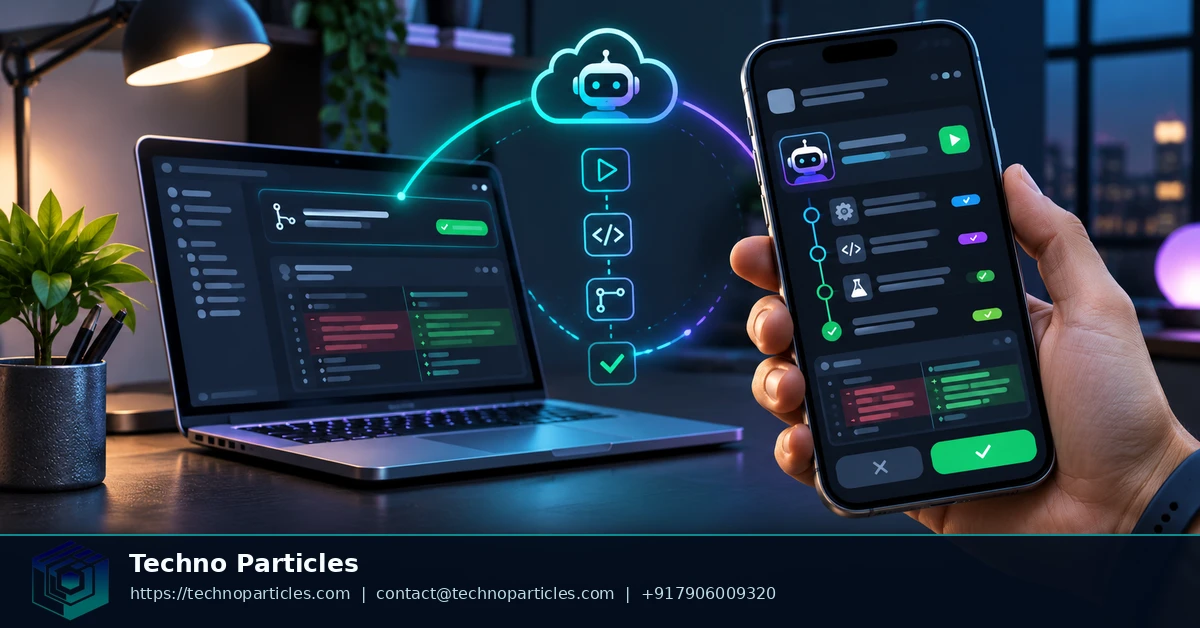
Imagine a team receives a report that a mobile app’s sign-in form accepts an empty email address. A useful handoff identifies the affected form, describes the expected validation behavior, and asks for a focused change. Include a reproducible example, such as submitting the form with the email field blank, so the agent has a concrete outcome to work toward.
A bounded bug-fix handoff
If the repository and task are suitable for cloud work, assign that request to a cloud session and provide the relevant file or component name if you know it. GitHub’s mobile cloud-agent guide describes how sessions can produce code changes and artifacts. A clear request can also specify which existing validation behavior should remain intact, giving reviewers a way to judge the proposed change.
If reproducing the issue depends on tools or dependencies installed on a particular development machine, a local agent session is the more direct fit. The phone can carry the conversation forward while the agent works in that environment. For context on the broader delivery work around an app, the application development service page describes testing and deployment support.
When to move back to desktop
Move to a larger screen when assessing the change requires reading several files together or comparing the proposed validation with surrounding form behavior. Inspect the diff against the original report: does the change address the blank-email case, and are related messages or form states still coherent? The session history can help explain how the agent interpreted the request, but the code remains the material to assess.
If the proposed fix exposes a separate issue, record that issue as its own task instead of silently broadening the original request. This example is a way to structure a handoff, not a guarantee that an agent’s changes will be correct.
The decision rule for controlling Copilot from your phone
Choose a cloud session when the work should continue on GitHub infrastructure; choose Agent Host or CLI remote control when it needs a specific development machine. That distinction answers the central question of how to control GitHub Copilot coding agents from your phone: select the execution environment that fits the task.
Next, start one small, clearly scoped task from GitHub Mobile and inspect its session, branch, or diff before expanding the scope.

Leave a comment
Your email stays private. You can see your comment immediately on this browser. Others see it after approval.