

n8n Assistant changes how beginners approach automation: describe the outcome, review the proposed plan, and let n8n create an editable workflow. n8n announced the Assistant on September 9, 2026, describing it as the successor to its older AI Workflow Builder. The current n8n Assistant documentation says it can create, edit, test and troubleshoot workflows from natural-language prompts.
The result remains a standard n8n workflow. Users can inspect nodes, connect credentials through normal screens, test executions and publish only after review. That makes n8n Assistant useful for learning workflow structure, while teams evaluating broader AI and automation services should still separate workflow generation from production readiness.
| Area | What is documented | Beginner takeaway |
|---|---|---|
| Core capability | Create, edit, test and troubleshoot workflows with natural-language instructions. | Start with one clear business outcome. |
| Workflow result | A regular n8n workflow that users can inspect, change and publish. | Review every node before production use. |
| Current access | n8n Cloud Starter and Pro; self-hosted Community, Registered Community and Business editions. | Check edition access before planning a build. |
| Product status | Preview; behavior, interface, supported actions and resources may change. | Expect occasional limits or changed results. |
What n8n Assistant changes for beginners
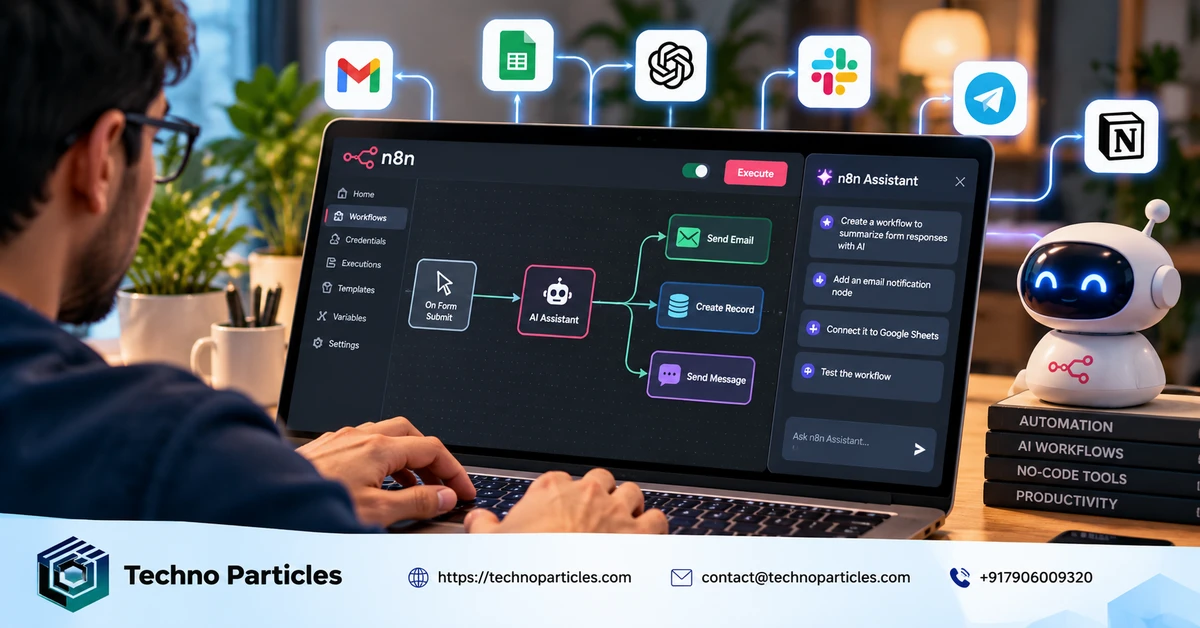
Manual workflow building starts with choosing triggers, nodes and data mappings. n8n Assistant moves the first step to plain-language planning. A beginner can describe the trigger, connected apps, data changes and expected failure behavior, then inspect the generated design before testing it.
The main shift is speed of exploration, not removal of technical responsibility. Credentials, permissions, testing and maintenance still matter. For a low-risk first experiment, choose a small workflow with inspectable inputs and outputs, then use the Assistant to turn that narrow goal into a working draft.
Where beginners find n8n Assistant
Start inside a new n8n workflow. The October 20, 2026 n8n Help Center update says Cloud users can look for Assistant in the workflow editor or open it from the AI toolbar. If it does not appear, use n8n’s documented support path instead of assuming the feature is enabled for every account.
Current documentation lists n8n Cloud Starter and Pro, plus self-hosted Community, Registered Community and Business editions. The Assistant works within the user’s existing permissions, so access to projects, workflows, credentials and connected resources still depends on the account and instance configuration. Select the project where the generated workflow should live before asking it to build anything.
Check access before writing a prompt
Use an account that can create and edit workflows in the chosen project. A beginner may also need permission to use the relevant integrations and credentials. n8n Assistant does not receive credential secrets through the chat; enter API keys, passwords and tokens through n8n’s standard credential screens, as explained in the official Assistant documentation.
Self-hosted users should confirm their edition and model-provider setup before planning a build. n8n’s documented self-hosted approach uses the operator’s own AI provider account, which creates a separate setup and billing decision. For larger projects, a requirements consultation overview can help frame the workflow’s owner, data sources and approval boundaries before implementation.
Once access is confirmed, begin with one workflow and one project. Keep the first request narrow enough to inspect node by node. This gives n8n Assistant a clear operating boundary and makes its generated result easier for a beginner to understand.

Build n8n AI workflows with a precise first prompt
n8n Assistant works best when a beginner describes the workflow’s boundaries before asking it to build. State the trigger, connected apps, data to read or change, successful outcome, failure behavior and any confirmation required before an action. This gives the Assistant enough structure to plan a usable workflow instead of guessing missing decisions. n8n’s September 9, 2026 product announcement describes this planning-and-construction approach.
Use one outcome and explicit boundaries
A practical first request might say: “When a new form response arrives, read the name and email, add the contact to the approved CRM list, and return a success message. If the CRM rejects the request, record the error and do not retry automatically. Ask for confirmation before publishing.” Replace those example details with the actual trigger, fields and services available in the selected project.
Keep the request narrow. One trigger and one main data path make generated nodes easier to understand. If the workflow needs a credential, let n8n prompt for it through its normal credential interface. Do not paste API keys, passwords or tokens into the chat.
Inspect the plan before execution
First ask the Assistant to explain its proposed workflow. Check whether the trigger matches the intended event, whether each field maps to the right destination, and whether failure behavior prevents unwanted changes. Ask for clarification when a service, field or permission is ambiguous.
Then let it create the draft in the selected project and run a controlled test with representative, non-sensitive input. Inspect node outputs and the execution path. If the result fails, describe the exact error and desired behavior; the Assistant can inspect the workflow and suggest a correction. Treat the generated result as an editable draft, not proof that the automation is ready for production. Teams planning more involved workflow ownership can also review a relevant AI automation service overview.
Refine the workflow through targeted follow-ups
After the first build, improve one part at a time. Ask n8n Assistant to rename unclear nodes, explain a field mapping, or change one branch without redesigning the whole workflow. Specific follow-ups reduce ambiguity and make each change easier to verify.
Use concrete observations in every request. For example, say that the CRM receives the email but not the company name, then identify the source field and expected destination field. Ask the Assistant to show which mapping it will change before applying the edit. This creates a clear link between the observed result and the proposed correction.
Compare expected and actual results
Write down the result expected from each important step before running the test. A form trigger should produce the required fields; a filter should pass only matching records; a CRM action should create or update the intended entry. Compare those expectations with each node’s output instead of judging the workflow only by its final message.
Test different inputs that matter to the workflow’s purpose. Include a complete record, a record with a missing optional field, and a record that should be rejected by the filter. Keep test data non-sensitive. If a branch behaves incorrectly, describe the input, observed output and desired output in the next prompt.
For workflows that affect customer records, payments or internal approvals, define who owns each correction and who confirms publication. A short workflow planning reference can help document those boundaries before the automation grows beyond a beginner experiment.
Know when the draft is understandable
A useful first workflow is not the one with the most nodes. It is the one whose trigger, data path, conditions and outputs a beginner can explain. If a generated branch remains unclear after focused questions, reduce the scope and rebuild that part with fewer actions. Smaller, legible workflows are easier to maintain as connected services and business rules change.
Turn the first build into an acceptance test
After n8n Assistant creates a draft, test the workflow against a short list of expected outcomes. This shifts the task from asking whether the automation “looks right” to checking whether each important operation behaves correctly.
Define checks before changing nodes
Write one pass condition for each major step. The trigger must receive the intended event. The data mapping must preserve required fields. The filter must reject records outside the rule. The final action must affect only the approved destination. n8n’s official Assistant announcement describes a workflow-building loop that includes execution, inspection and debugging.
Ask the Assistant to compare the generated workflow with those conditions. If a condition fails, identify the exact node, input and output. Then request one targeted change, such as correcting a field mapping or adding a missing branch. Avoid asking for a complete redesign when one node is wrong.
Use deliberate test cases
Prepare a small set of non-sensitive inputs. Include one valid record, one record missing an optional value and one record that should be rejected. Check both the visible result and the execution path. A successful final message does not prove that every intermediate value was correct.
For an error case, confirm that the workflow stops, records the failure or routes it for review as intended. Do not enable automatic retries until you understand how duplicate submissions could affect the connected service. n8n’s earlier Assistant announcement also describes confirmation controls and review before consequential changes.
Keep the workflow explainable
Rename unclear nodes and remove unused branches after testing. A beginner should be able to explain the trigger, main data path, decision points and final action without relying on the chat history. If the workflow becomes part of a customer-facing product, its integration and testing boundaries should be documented alongside the application development work.
This acceptance-test habit makes n8n AI workflows easier to debug, hand over and maintain. It also gives each later prompt a concrete target instead of another broad request.
Choose the right starting point for n8n AI workflows
For beginners, the best use of n8n Assistant is a small automation with a clear purpose, limited integrations and an output that can be checked quickly. That scope lets you learn how prompts become triggers, data mappings, conditions and actions without making the first experiment responsible for a critical business process.
Use n8n Assistant when the workflow can be explained in ordinary language and divided into observable steps. A useful decision test is simple: can you identify what starts the workflow, what information moves through it, which rule changes the path and what final result should appear? If yes, the Assistant can provide a practical starting structure that you can refine through targeted changes.
Manual construction becomes more appropriate when the logic depends on unusual integrations, complex data transformations or rules that are difficult to express precisely. Expert review is also valuable when an automation changes customer records, controls approvals, handles sensitive information or connects several business-critical systems. In those situations, the main advantage is not speed of initial construction but confidence in ownership, failure handling and long-term maintenance.
The most durable beginner habit is to treat generated workflows as working material for a decision, not as a decision itself. Keep the first design understandable, make its expected behavior visible and expand it only when each additional branch has a clear purpose. That approach turns experimentation into a repeatable way to evaluate automation ideas.
As n8n Assistant evolves, this boundary may move toward more capable workflow planning and troubleshooting. For now, beginners can build n8n AI workflows effectively by matching the tool to problems that are specific enough to describe, small enough to inspect and valuable enough to justify careful iteration.



Leave a comment
Your email stays private. You can see your comment immediately on this browser. Others see it after approval.