
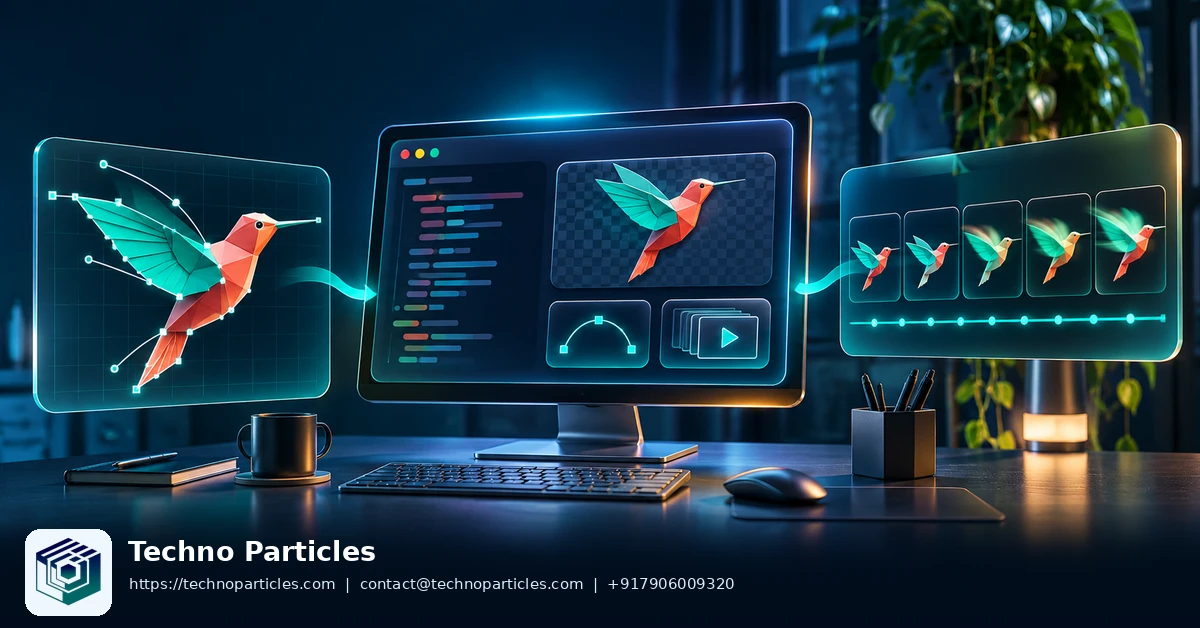
OpenAI’s Images 2.6 release brings vector and animated image generation to its API. For developers exploring how to use GPT-Image-2.6 API to generate SVGs and animated GIFs, that means an application can request either a static vector graphic or a moving image as part of its image workflow. OpenAI announced the release on November 4, 2026, in its Images 2.6 announcement.
| API option | Documented role |
|---|---|
| GPT-Image-2.6 Sunburst | More detail and precision |
| GPT-Image-2.6 Flare | Faster iteration |
| SVG output | Static vector graphic |
| GIF output | Animated image |
What changed in GPT-Image-2.6?
OpenAI introduced two API models under the GPT-Image-2.6 family. Sunburst is positioned for work requiring greater detail and precision, while Flare is positioned for faster image creation. These are separate model choices: the documented API identifiers are gpt-image-2.6-sunburst and gpt-image-2.6-flare, rather than a single identifier named after the family. The image generation API reference lists the supported models.
OpenAI’s Images 2.6 system card, published November 4, 2026, describes SVG and GIF generation in the API. These formats serve different deliverables: a vector graphic can fit a design workflow, while an animated image can show movement in a compact visual asset.
For a product team, that distinction can shape where image generation fits into an interface. A static illustration may support an onboarding screen; an animated character may communicate a reaction or demonstrate a moment in a sequence. The UI/UX services page describes related work on interface journeys and design systems.
How to generate an SVG with the Image API
To request an SVG, send a generation request to POST /v1/images/generations with output_format set to svg and n set to 1. Select one of the documented model identifiers and describe the graphic in the prompt. OpenAI’s image generation guide documents the SVG request format and output handling.
The response contains base64-encoded UTF-8 XML. Decode the value in data[0].b64_json and save the resulting bytes with an .svg extension. The saved file is the graphic; the encoded response value is a transport representation that must be decoded before use.
Describe the graphic for its intended use
A useful prompt identifies the subject and the visual elements needed in the final asset. For example, a team preparing an onboarding illustration could describe the subject, preferred colors and the space where the graphic will appear. That gives the request a concrete purpose without assuming that the first result will fit the interface perfectly.
After decoding, open the file in the environment where it will be used and inspect the visible result. Check whether its shapes and colors communicate the intended idea at the display size. The application development services page describes related work on building and deploying mobile applications.
Understand the output boundary
The documented SVG output is static vector content: it does not include scripts, external resources or embedded raster images. SVG output is available through the generation endpoint, not the image edit endpoint. Plan the request accordingly when a workflow depends on modifying an existing image.
How to create an animated GIF
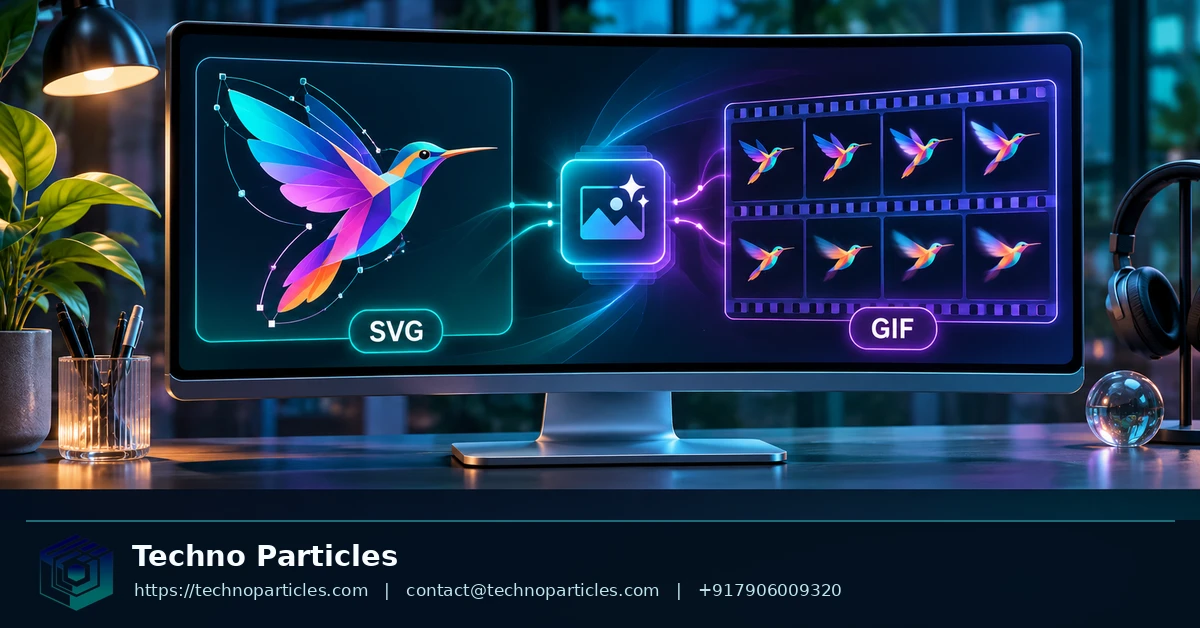
Set output_format to gif in an Image API request to produce an animated image. The image generation guide describes two routes: generate an animation from a prompt, or use the image edit endpoint when reference images should guide the result.
Choose the route based on the material already available. A prompt-only request can describe an original animation, such as a paper airplane circling across a simple background. An edit request can use a reference image when the animation needs to follow an existing visual. In either case, describe the subject, its movement and how the final frame should connect back to the beginning if the GIF is intended to loop.
Set the timing and dimensions
The frame_count parameter accepts values from 2 to 16 and defaults to 9. Use frame_duration_ms to specify how long each frame appears: the documented range is 20 to 2,000 milliseconds, with a default of 200 milliseconds. Durations are rounded to the nearest 10 milliseconds.
For size, use auto or explicit width and height values. Explicit dimensions must be positive and divisible by 16. Frame count, dimensions and the number of animations also need to fit the model’s total pixel budget, so increasing one can constrain the others.
The response carries the GIF as base64 data. Decode the returned value and save the bytes with a .gif extension before opening or distributing the animation. GIF output does not support streaming, partial images or custom output compression.
For a website workflow, the intended placement can inform the prompt: a small interface animation may need a clear subject and restrained movement, while a larger illustration can accommodate more visual detail. The website development services page describes related website implementation work.
API availability, pricing and usage limits
OpenAI lists both Sunburst and Flare as available through its API in the Images 2.6 announcement. An organization may need verification to use GPT Image models, and its applicable rate limits depend on its usage tier. Check the account’s access and limits before planning a production workload.
Understand token-based charges
OpenAI lists image output at $30 per million billable image-output tokens. The Flare model page also lists separate rates for text and image inputs. The output rate alone therefore does not establish a fixed price for a finished asset.
SVG requests have an additional cost structure: the image model charges for the reference image, while the authoring model charges for the tokens used to produce the SVG. The total depends on the tokens each model uses. Include both components when estimating the cost of a vector-generation workflow.
For budgeting, distinguish the cost of one request from the cost of producing an accepted asset. A workflow that generates several candidates before selecting one can consume tokens for each attempt. Record usage alongside the number of accepted files to make that distinction visible in planning.
Plan around account limits
The Flare model documentation explains that usage tiers determine rate limits and directs developers to their organization’s limits. A team expecting bursts of requests should design its queue around the limits shown for its own account, rather than assuming a shared quota applies to every customer.
For a broader implementation, project consultation covers workflow analysis and scope definition. Those activities can help establish how image generation fits into an existing application and which operational costs need to be included in its budget.
Choosing a model and production workflow
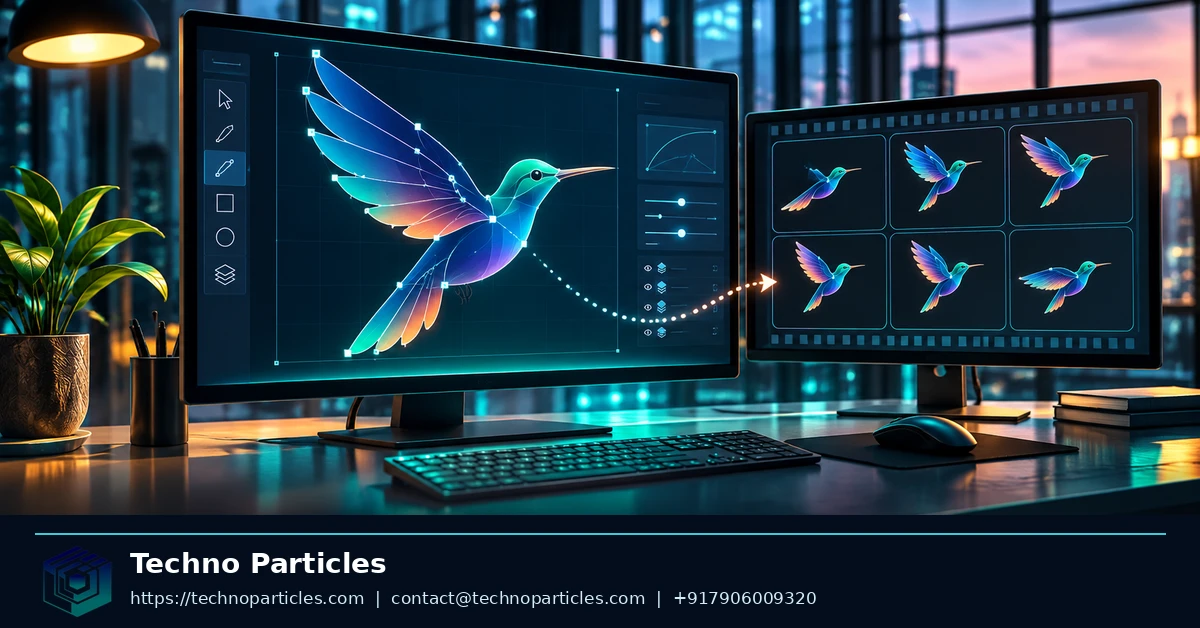
Choose Sunburst when the work calls for more visual detail or consistency across edits. Choose Flare when the priority is moving quickly through alternatives. OpenAI describes these different priorities in its Images 2.6 announcement; the choice depends on what matters most for the asset, not on a single model being best for every request.
For example, a team exploring directions for a product illustration might use Flare to compare several concepts. Once it has chosen a direction, Sunburst may be the better fit for a version that needs more detailed visual treatment. This is a workflow choice based on OpenAI’s positioning, not a measured comparison of the two models.
Match the asset to its job
Consider how the finished asset will be used before writing the prompt. A static interface illustration may benefit from vector shapes and colors that a designer can adjust. A looping GIF can communicate a change over time, such as an object moving or a state changing. The intended use should also shape the composition: an animation placed beside a button has a different job from a large illustration introducing a page.
Give the model a clear visual subject and describe the surrounding composition. When an existing visual needs to guide an animation, choose a reference that represents the elements the result should preserve. For interface assets, the UI and UX services page describes related work on prototypes, design systems and usability review.
Review the result in context
OpenAI’s image generation guide notes limitations involving text rendering, consistency and precise structured compositions. Review any lettering, recurring visual elements and layout relationships that matter to the asset’s purpose. Complex prompts can also take longer to process, so allow for that when deciding where generation fits in a user-facing workflow.
Choosing the right output
For how to use GPT-Image-2.6 API to generate SVGs and animated GIFs, choose SVG for static vector artwork or GIF for motion; select Sunburst when detail matters most and Flare when faster iteration matters most. Start with one small Image API request specifying the model, output format and dimensions, then inspect the returned file.


Leave a comment
Your email stays private. You can see your comment immediately on this browser. Others see it after approval.