
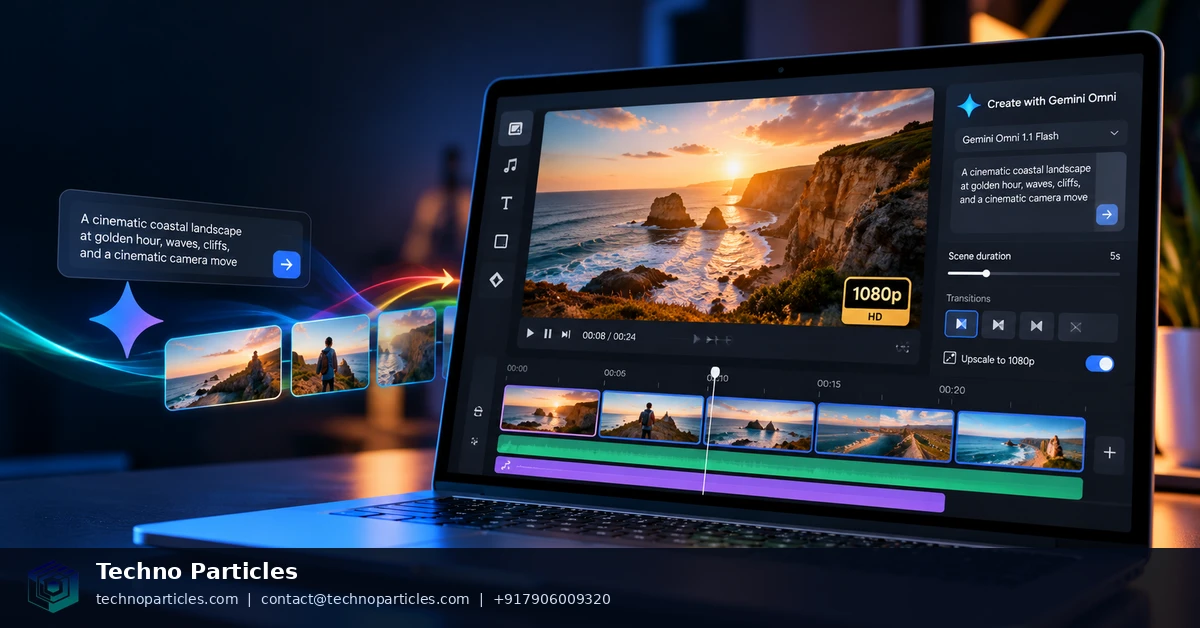
Learning how to create free 1080p AI videos with Gemini Omni in Google Vids is now possible for eligible Google and Google Workspace accounts. In its September 23, 2026 announcement, Google said Vids users could create HD scenes with Gemini Omni 1.1 Flash, extend scenes, choose specific durations, use templates, and upscale existing AI clips. The practical opportunity is significant, but access is not identical for every account.
| Feature | What Google documents | Important limitation |
|---|---|---|
| Resolution | 720p or 1080p output | Account eligibility may vary |
| Clip length | Typically 3–10 seconds | Longer sequences require multiple clips |
| Format | Landscape or portrait | Choose the format before generating |
| Monthly use | Up to 50 videos for most users | Limits may change by plan or account |
How to create free 1080p AI videos with Gemini Omni in Google Vids
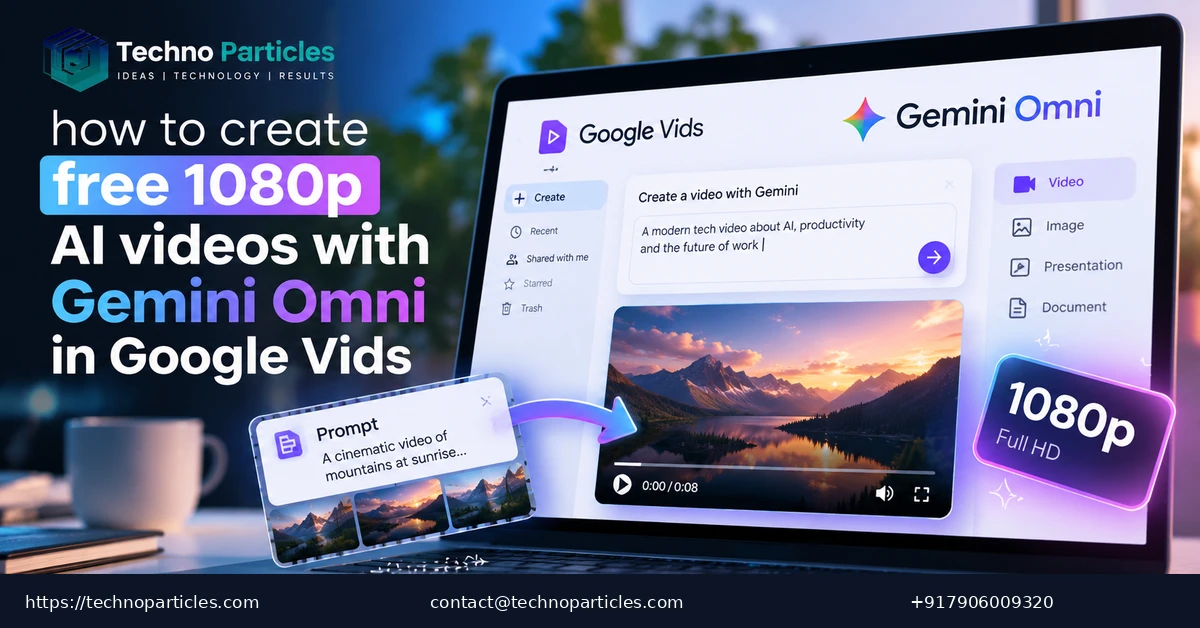
On a desktop browser, open vids.new and choose Create AI videos. Select Create, then describe the scene you want to produce. A useful prompt should identify the subject, action, camera movement, lighting, sound, visual style and emotional tone. For example, specify a product rotating slowly on a studio table, with a close camera move, soft side lighting and an upbeat electronic atmosphere.
Next, select landscape or portrait orientation and choose the available duration. Generate the clip, review the result, and insert it into the Vids timeline. You can build a longer explainer by generating several short scenes with consistent characters, locations and visual instructions. Google says Omni-generated clips include an imperceptible SynthID watermark.
Google’s help documentation currently mentions eligible Workspace subscriptions, while the September announcement describes broader no-cost access. Check whether Create AI videos appears in your own account before planning a production workflow. For businesses that need custom video workflows or broader digital implementation, explore AI and automation services.
Improve Gemini Omni results before editing
The first generated clip is a draft, so review it for subject consistency, readable text, realistic motion and whether the framing suits its intended platform. Short prompts can produce attractive footage, but detailed instructions generally make revisions easier. State what must remain fixed, such as a product’s colour, logo placement, character clothing or background location. Then describe only the movement you want to change.
When available in your account, reference images can provide additional visual direction. Google’s help documentation says Vids supports up to seven reference images, which may be useful for a product, character, room or visual mood. Use clear images with a consistent purpose, and explain how each reference should influence the scene. Avoid assuming that an uploaded image will be reproduced perfectly or that small text will remain accurate.
Build longer videos from controlled scenes
Because individual clips are commonly three to ten seconds long, a polished video may require several connected generations. Create a simple shot list before producing them: opening context, main action, close-up detail and closing frame. Repeat important descriptions across prompts so the lighting, setting and subject remain recognisable. Generate alternate takes when a transition, facial expression or camera movement looks unnatural, then place the strongest versions on the timeline.
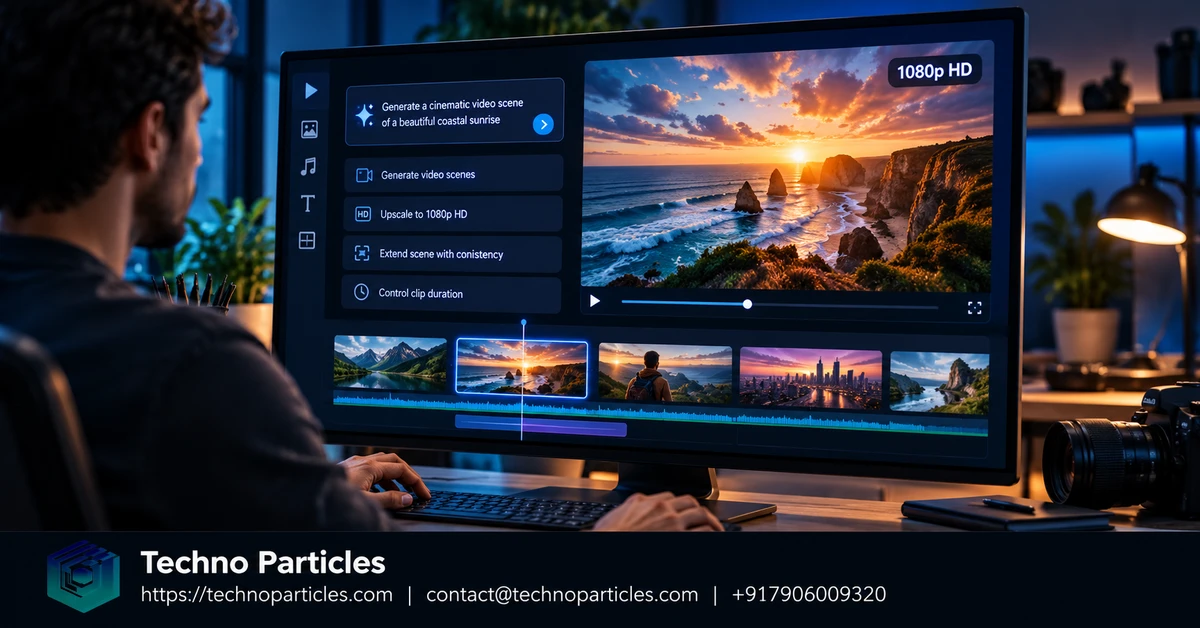
Google also documents options to extend scenes and upscale existing AI clips. Treat these as targeted editing tools rather than guarantees of higher-quality footage. Upscaling may improve output size, but it cannot reliably repair distorted objects, incorrect text or inconsistent details. Keep the original version until you have checked the enlarged result on the device and platform where it will be published.
For a business workflow, review rights, approvals and brand safety before sharing generated footage. A repeatable brief, human review step and organised project files can make experimentation easier to manage. Teams planning a wider content pipeline may also benefit from digital marketing support for campaign planning, analytics and conversion-focused distribution.
Check access, quotas and export settings
Before committing to a production schedule, test the feature with a short draft. Google’s announcement describes no-cost Gemini Omni 1.1 Flash video creation, but the current Vids help documentation refers to eligible Google Workspace subscriptions. That difference means availability may depend on account type, rollout status or plan. If Create AI videos is missing, review the account currently signed in and consult Google’s latest product guidance rather than assuming the feature is unavailable permanently.
Do not treat “free” as unlimited generation. Google’s help page currently states that most users can create up to 50 videos per month, although limits may vary. The same documentation distinguishes output options such as 720p and 1080p, so confirm the selected resolution before generating a batch. Google also offers Vids at no cost while reserving some advanced capabilities and expanded limits for Workspace or Google AI plans.
Keep Gemini Omni separate from earlier Veo offers
Google has also described separate monthly allowances for Veo 3.1 generations. That earlier offer should not be used as proof of Gemini Omni availability, quota or output behaviour. Check the model name shown in your Vids interface and record the account, date and settings used for each test. This simple log helps teams compare results when Google changes access rules or generation limits.
For reliable publishing, export a test scene and inspect it at full size on the intended platform. Look for compression, awkward motion, audio mismatches and visual elements that could create confusion. Add captions, narration or music only after the core footage is approved, and retain project files so corrections do not require rebuilding every scene. If your process needs requirements planning, approvals or a larger digital workflow, project consultation services can help structure the implementation.
Use a repeatable prompt structure
A structured prompt makes it easier to compare Gemini Omni results and revise individual scenes. Start with the subject and setting, then specify the action, camera movement, lighting, sound direction and overall tone. For example, describe a coffee maker on a bright kitchen counter, a slow side-to-side camera move, morning window light, gentle pouring sounds and a calm product-demo style. Add constraints such as “keep the appliance colour unchanged” or “avoid readable text on the packaging” when consistency matters.
Choose one primary action for each short clip. Combining several camera moves, scene changes and complex interactions in a single request can make the result harder to control. Generate an establishing shot first, then create closer views or detail shots that reuse the same subject description. If a reference image is available, explain whether it should guide the product, composition, colour palette or environment rather than leaving its purpose ambiguous.
Match the output to the publishing format
Use landscape orientation for conventional presentations, websites and many video platforms, or portrait orientation for mobile-first feeds. Google’s help documentation lists 720p and 1080p output options and 24 frames per second, but the controls and limits shown may depend on the account and current rollout. Confirm the settings before generating several clips, especially when a project requires consistent dimensions.
Keep a simple production record for each scene: prompt version, selected duration, resolution, reference images and revision notes. This makes it easier to identify which instruction improved a result and prevents teams from accidentally mixing incompatible clips. Once the footage is approved, place the selected scenes in sequence and check transitions at normal playback speed.
For projects that combine generated video with landing pages, campaign assets or conversion tracking, digital marketing support can help connect the creative work to its distribution plan.
Review generated scenes before publishing
After arranging the clips, watch the complete sequence several times rather than judging each generation in isolation. Check whether the opening scene establishes the subject quickly, whether motion remains understandable and whether the cuts support the intended message. A technically sharp 1080p export can still feel unfinished if the pacing, framing or order of scenes is inconsistent.
Inspect important details at full size. AI-generated footage may contain changing textures, unstable edges, unusual hand movements or objects that subtly shift between frames. If the video includes a product, logo or interface, compare it with the approved source material and remove any scene that could misrepresent the real item. Avoid relying on generated text for essential instructions; add verified titles or captions during editing instead.
Build a small approval checklist
- Message: confirm that each scene supports one clear purpose.
- Continuity: check subject appearance, lighting, orientation and action across adjoining clips.
- Accessibility: add readable captions, sufficient contrast and meaningful audio alternatives where needed.
- Rights and privacy: verify that supplied reference images and any included brand materials are authorised for use.
- Technical output: confirm resolution, aspect ratio, frame rate and audio before delivery.
Keep rejected generations in a clearly labelled review folder until the final version is approved, but do not publish them accidentally. Save the prompt and settings for every accepted scene so a replacement can be requested without rebuilding the entire project. This record is especially useful when several people review the same video or when a campaign needs alternate landscape and portrait edits.
For a broader content workflow, connect the finished video to its destination rather than treating generation as the final step. A landing page, search-optimised article, campaign message and measurement plan should all use consistent language and calls to action. Teams that need help coordinating these elements can explore SEO services alongside their video production process.
What to know before using Gemini Omni
Learning how to create free 1080p AI videos with Gemini Omni in Google Vids also means understanding the feature’s current limits. Google says Omni-generated clips include an imperceptible SynthID watermark, helping identify content created with its AI systems. The available resolution, generation quota and account access may vary by rollout, account type or subscription, so confirm what appears in your own Vids workspace before planning a large production.
Google’s help documentation lists 3–10 second clip durations, 720p and 1080p output, 24 frames per second and support for landscape or portrait formats. It also documents a limit of up to 50 videos per month for most users, but that should not be treated as an unlimited free allowance. The September announcement’s broader wording about no-cost access and the help page’s Workspace eligibility language indicate that availability may change or differ between accounts.
Final takeaways
Gemini Omni makes short-form AI video creation more accessible by combining prompt-based scene generation with practical editing controls inside Google Vids. To get reliable results, begin at vids.new on a desktop browser, check whether Create AI videos is available, select the required format and duration, and use detailed prompts that describe the subject, action, camera, lighting, sound and tone.
Use 1080p when the final destination benefits from extra detail, but judge the complete sequence rather than resolution alone. Review continuity, motion, captions, audio, rights and privacy before publishing. Keep prompts and settings for accepted scenes, and remember that Google’s earlier announcements about free Veo 3.1 generations describe a separate model and quota.


Leave a comment
Your email stays private. You can see your comment immediately on this browser. Others see it after approval.